
The email security digest is a scheduled email sent to an end user one or more times per day, listing all messages our system removed from their inbox. This includes emails that were quarantined, moved to junk, or moved to deleted items, according to their organization's remediation settings. Buttons in the digest allow the user to release or delete a message without leaving their inbox.
From the digest, or from https://me.cybersentriq.com, the user can access the end user portal, which gives end users a view of what they were protected from, and their options to act on this. Remediated emails can be released if safe, or deleted. The portal shows the user's own mailboxes, including aliased email addresses.
The portal also lets users review their email history, allow trusted senders and domains, and make changes to their email digest schedule and contents.
PAGE CONTENTS
- How to set up the end user portal (for admins)
- How to set up the email security digest (for admins)
- How to use the email security digest (for end users)
- How to use the end user portal (for end users)
- Frequently asked questions
How to set up the end user portal (for admins)
1. Before end users sign in for the first time, an admin should go to https://me.cybersentriq.com and click the button to enter using Microsoft credentials.
2. On the first sign-in, Microsoft asks for consent for our platform to sign users in with their Microsoft credentials. The consent screen includes a Consent on behalf of your organization checkbox. Tick this box.
3. Once the admin has accepted, all users in the organization can access the portal without any further consent prompts. If the admin does not consent on behalf of the organization first, each user will be asked for individual approval when they first access the portal.
How to set up the email security digest (for admins)
As an MSP or customer admin, you can set up email security digests for your customers or users. To do this:
1. Log into the Platform. In the side navigation, go to Email Security > Configuration > Email digest.
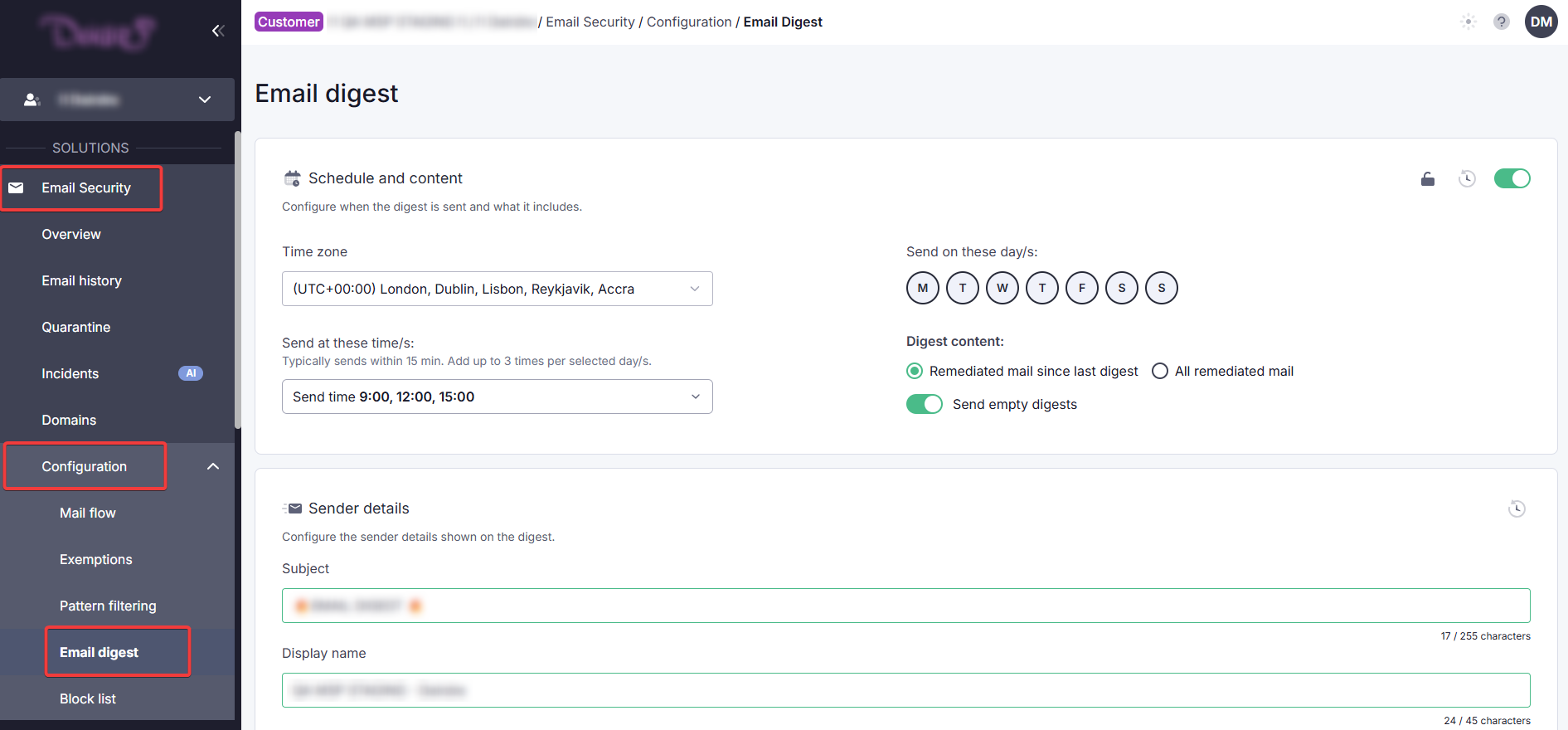
2. Set the schedule and contents of users' digests. The default schedule is: once a day at 09:00 in the user's own time zone, Monday to Friday.
- For MSP admins, these digest settings will apply to all customer users.
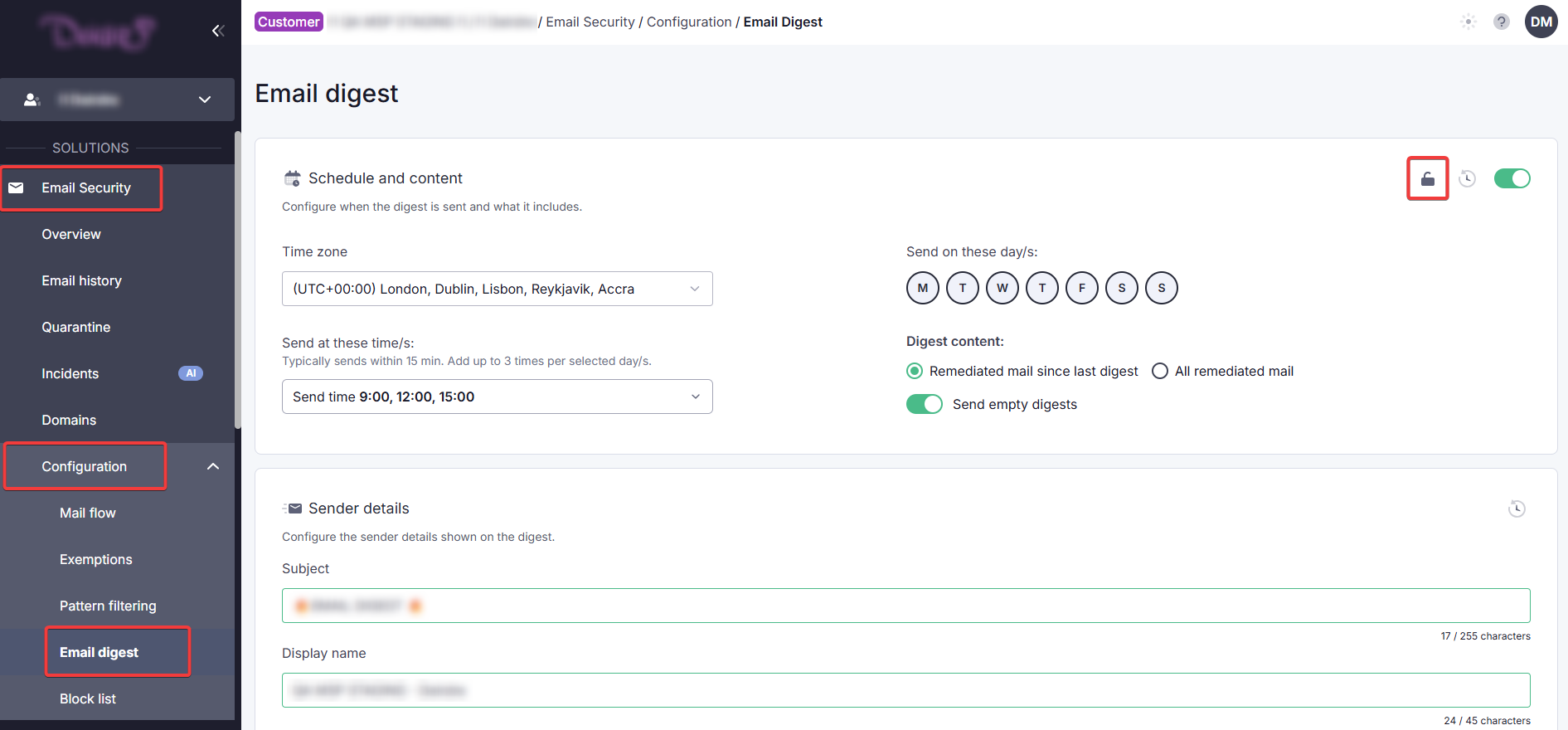
- For customer admins, these digest settings will apply to all your users. You can choose to allow users to make changes to their digest by clicking the lock icon.
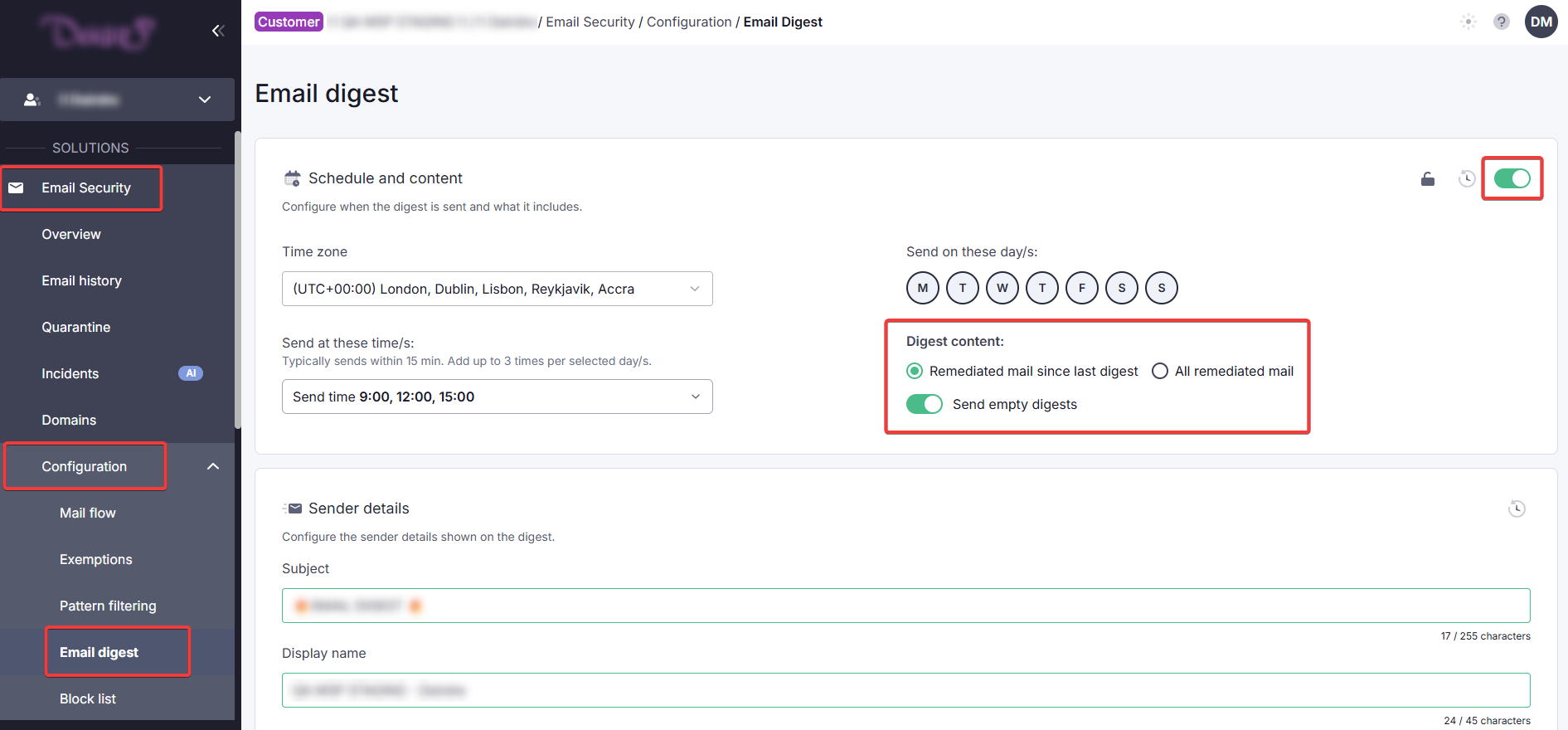
3. Under Digest content, select whether users will see only newly remediated emails since the last digest (default), or all remediated mail. Send empty digests means they'll receive a digest even if there is no remediated mail (default: off). Use the toggle at the top right to disable all digests.
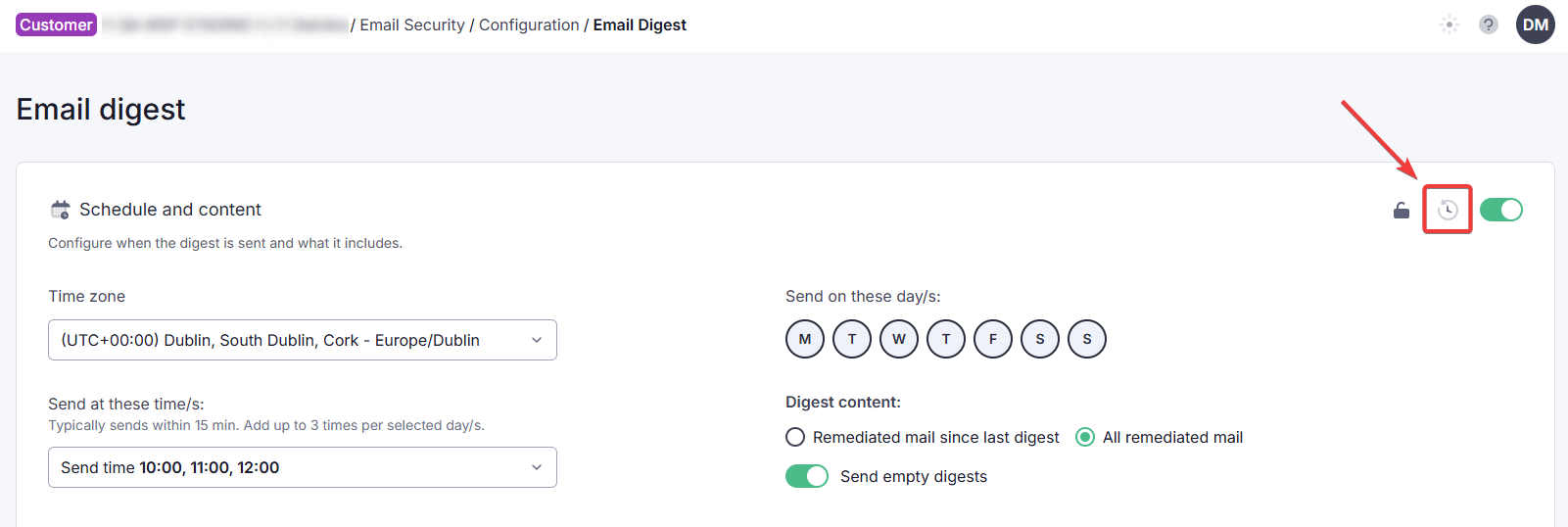
As a customer admin, you can choose to revert to your MSP's default schedule and contents by clicking the restore icon at the top right. As an MSP admin, you will not see this option.
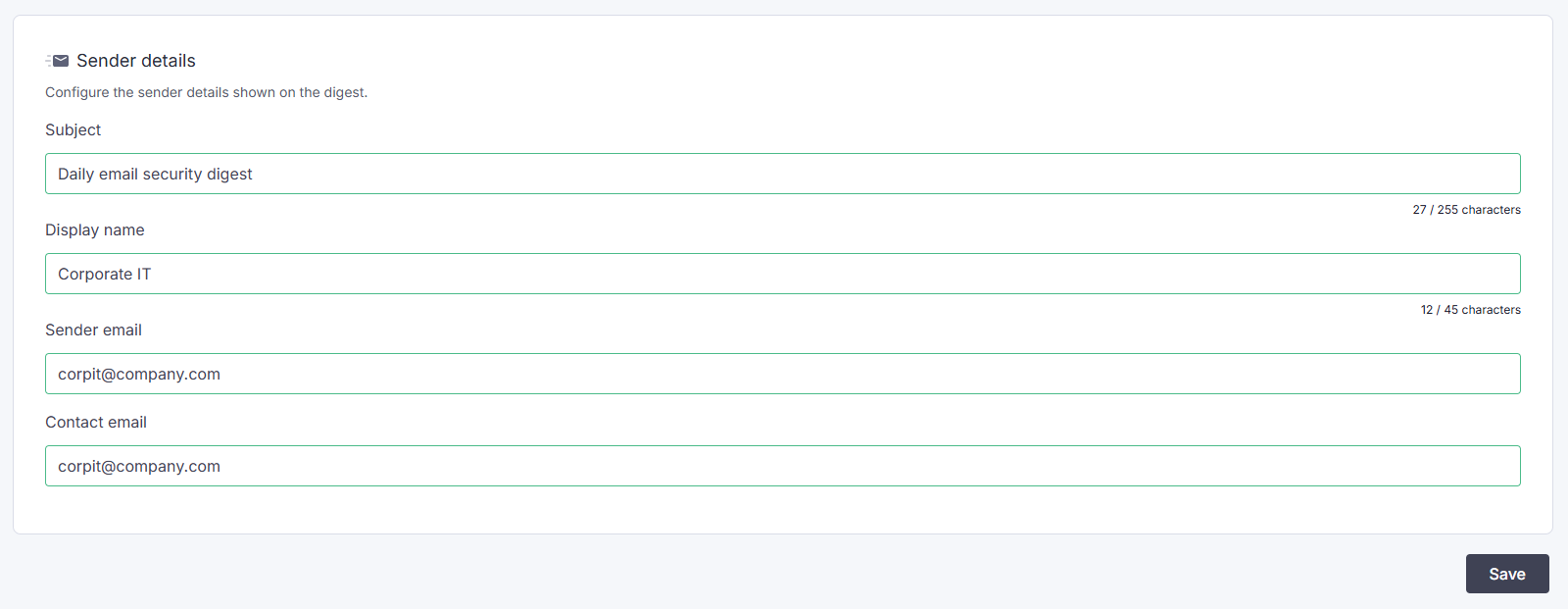
Under Sender details, complete the fields and click Save.
How to use the email security digest (for end users)
The email security digest shows quarantined emails, junk mail, and deleted items. 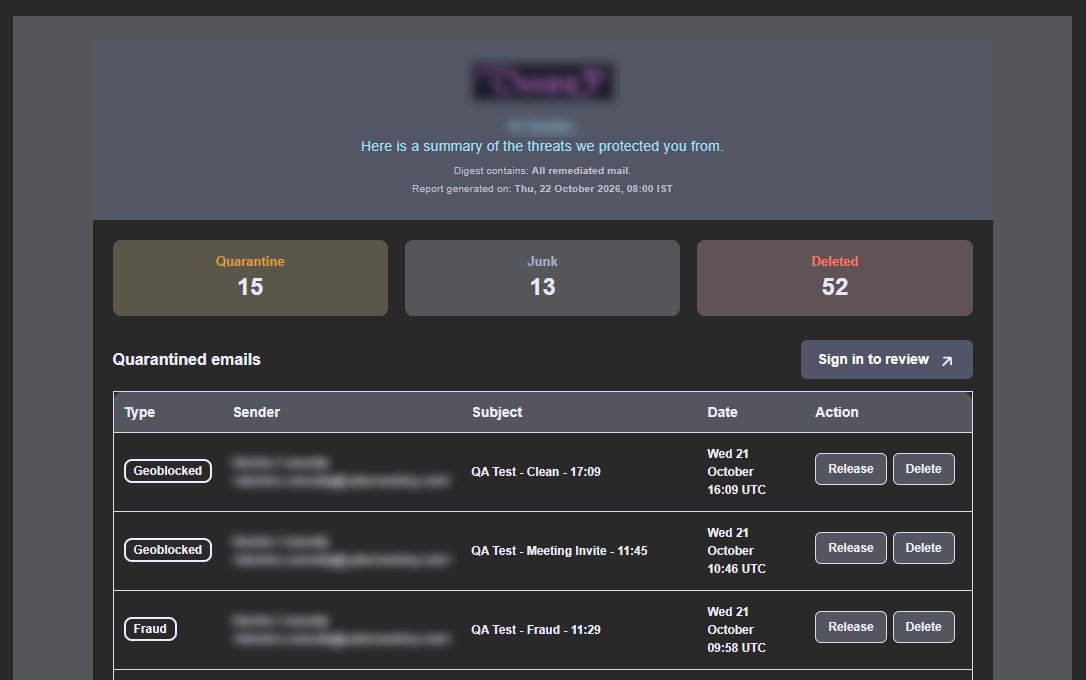
As an end user, you can release or delete a quarantined message directly from the digest. Click Release to move a trusted email to your inbox, or Delete to remove the email from quarantine and into deleted items. All unactioned quarantine items are auto-deleted after 14 days.
Junk mail and deleted items are not actionable from the digest, only listed. To review these messages, go to the applicable section in your Outlook application or on Outlook web.
To review your email history, allow trusted senders, or make changes to the digest schedule, click Sign in to review at the top right.
How to use the end user portal (for end users)
Signing in
The portal uses standard Microsoft 365 single sign-on (SSO). There is no separate username and password; if the user is already signed in to Microsoft 365, they go straight into the portal without logging in at all. At times, Microsoft may show its usual authentication screen. The user picks their account and authenticates as they would for any Microsoft 365 app.
Email history
Under Email history, you can see a list of received emails for a specific time period (default: Today). For each email, Verdict shows how our system classified the email (e.g. Malicious Intent), and Status shows what happened to it (e.g. Quarantined). What happens to emails is set by the admin and cannot be modified by the end user.
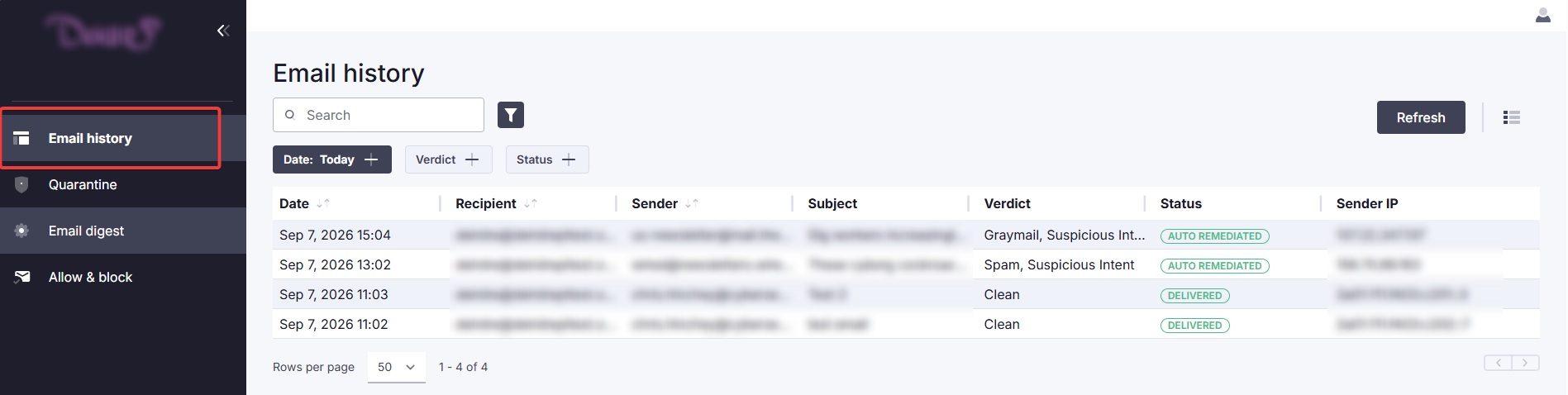
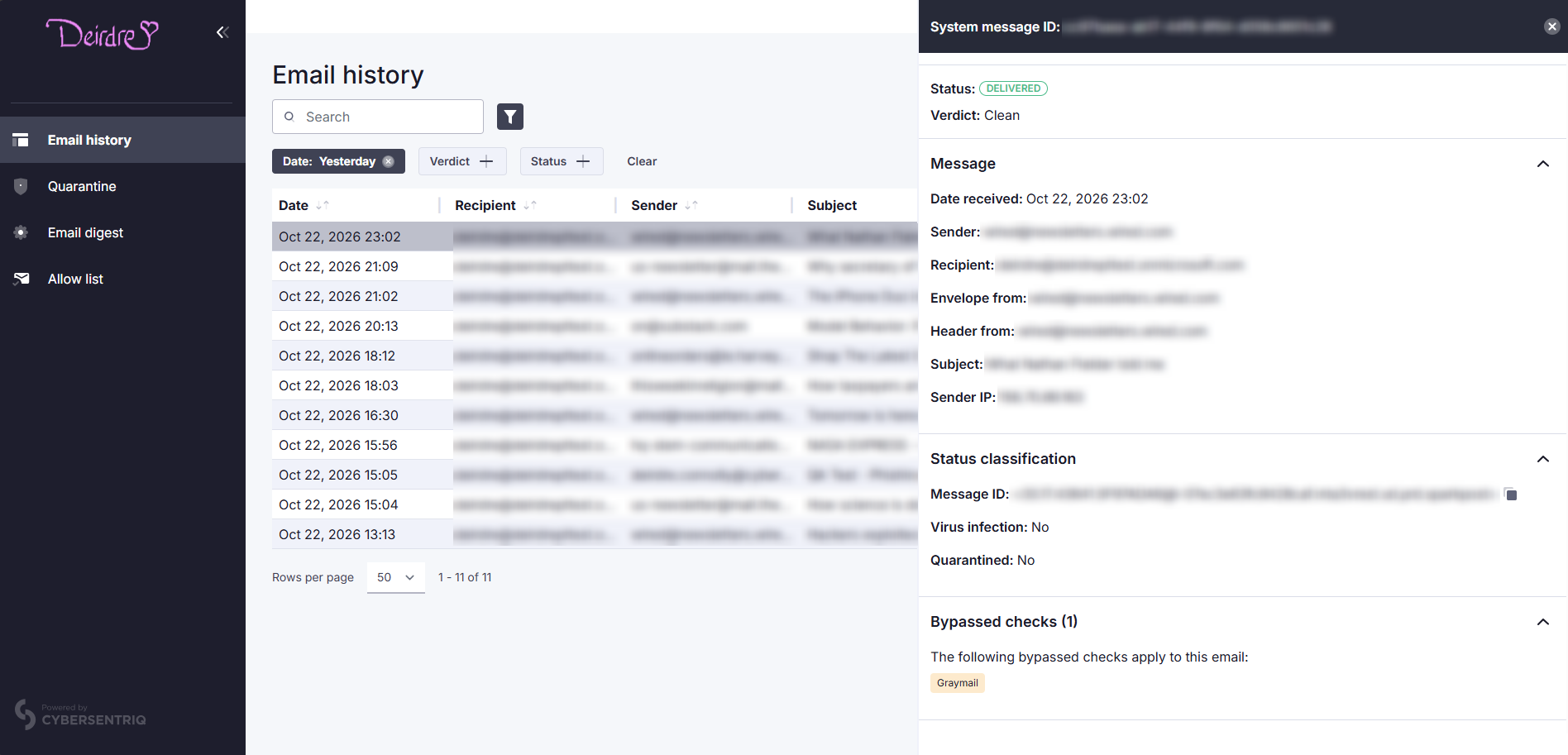
Click on any email entry to see additional information about it, such as whether virus infection was found, or whether any security checks were bypassed during analysis.
Note: All timestamps are shown in the end user's Microsoft 365 time zone.
Quarantine
Under Quarantine, you can see the same emails that are shown in the digest, filtered by date (default: Today). The Verdict column corresponds to the Type field in the email digest.
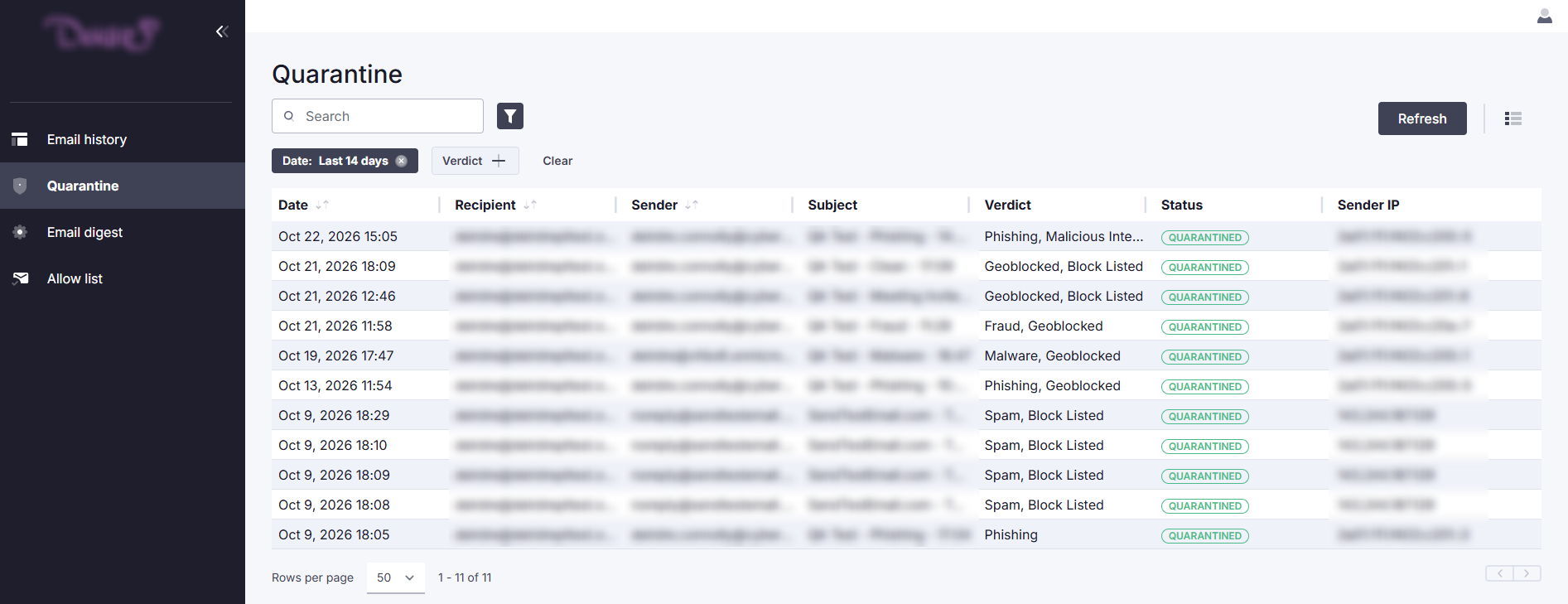
Click on any email entry to see additional information about it, such as whether virus infection was found, or whether any security checks were bypassed during analysis.
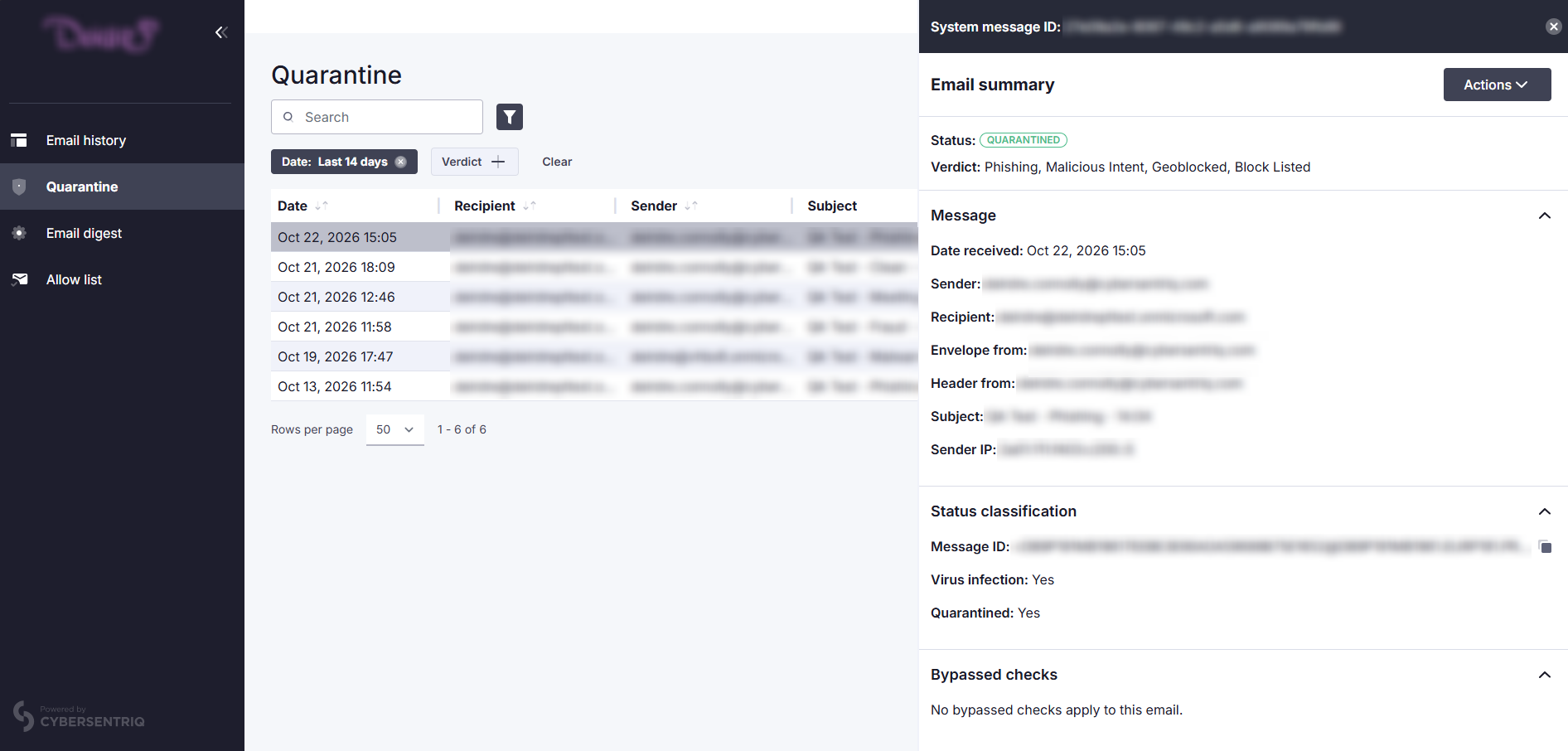
Click on Actions to see options to release or delete this email.
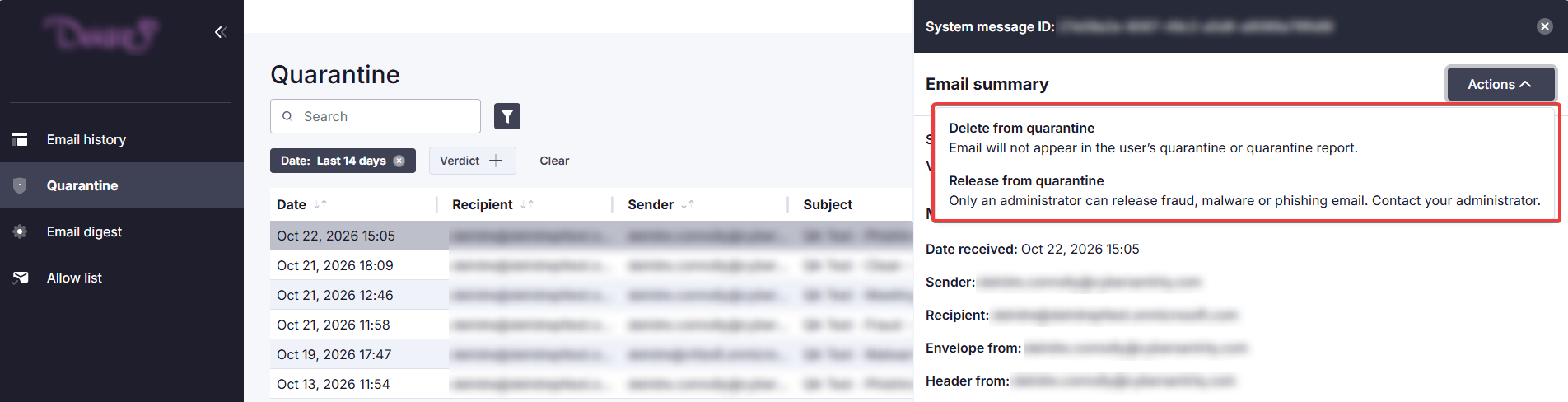
Email digest
Under Email digest, you can change the schedule and contents of your digests. If you are unable to make changes, your company admin has locked these settings.
Use the toggle at the top right to disable all digests.
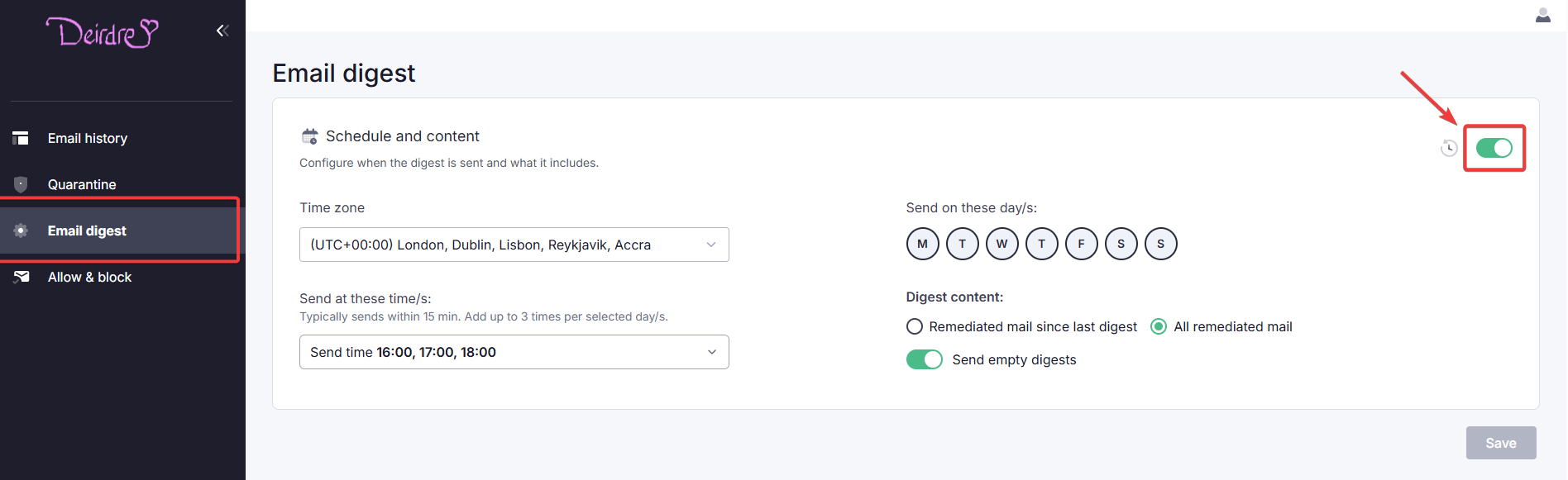
Set your preferences for time zone, send time, and send days (default: once a day at 09:00 in the user's own time zone, Monday to Friday).
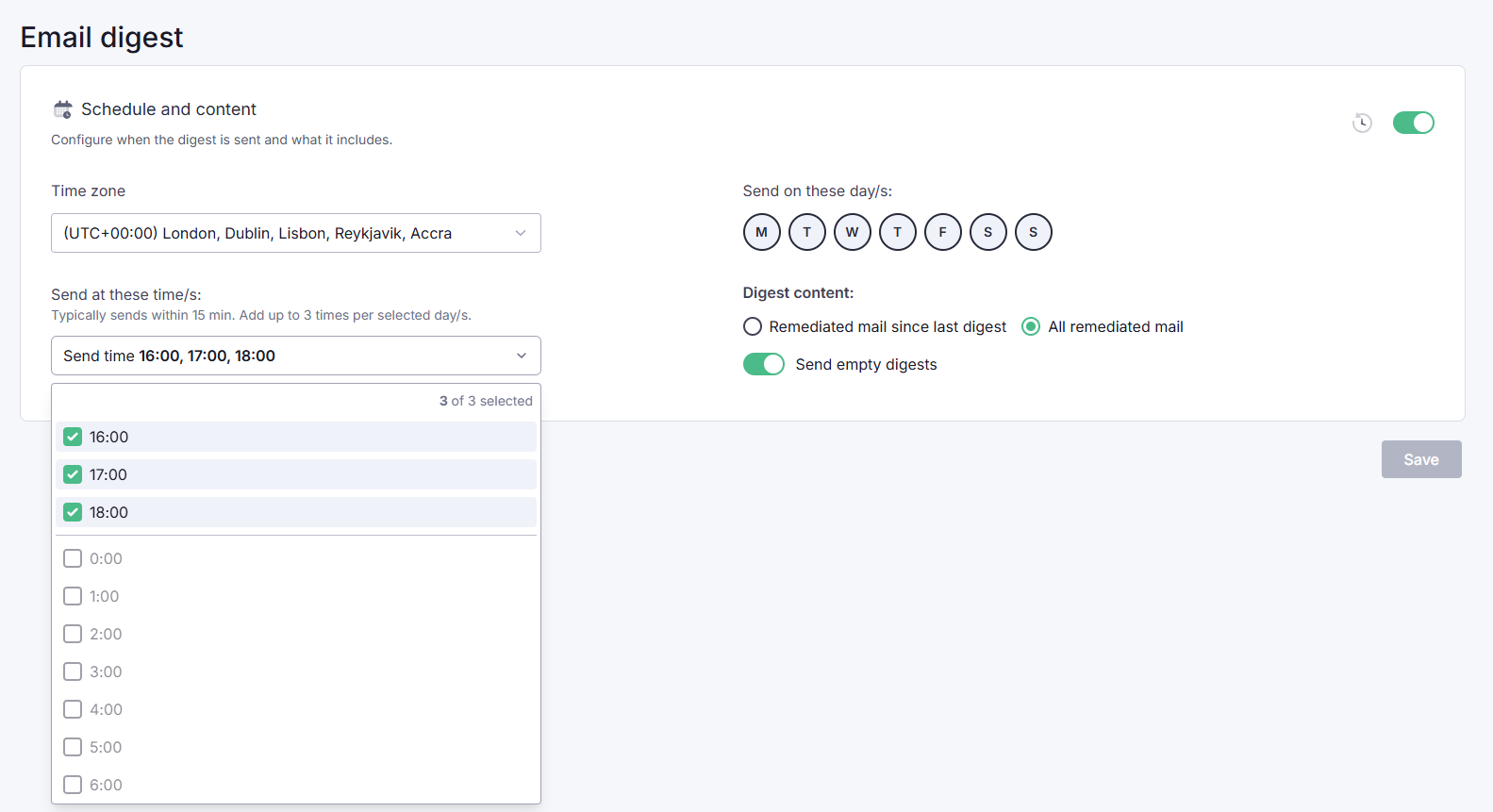
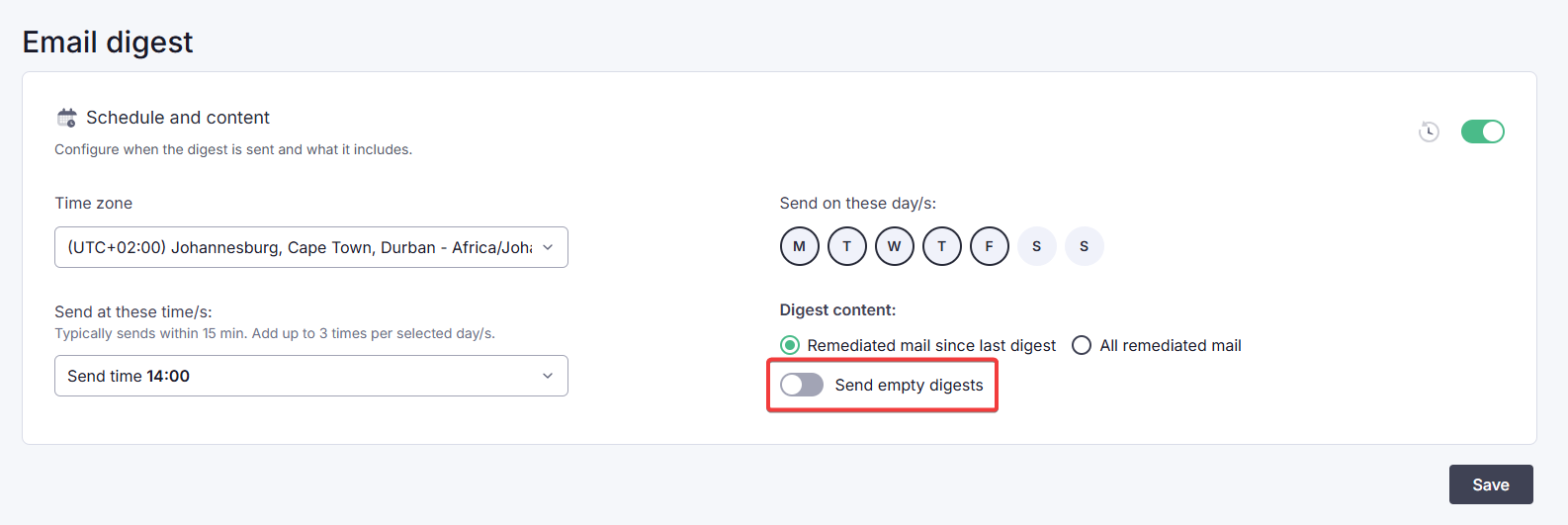
Under Digest content, select whether you want to see only newly remediated emails since the last digest (default), or all remediated mail. Send empty digests means you'll receive a digest even if there is no remediated mail (default: off).
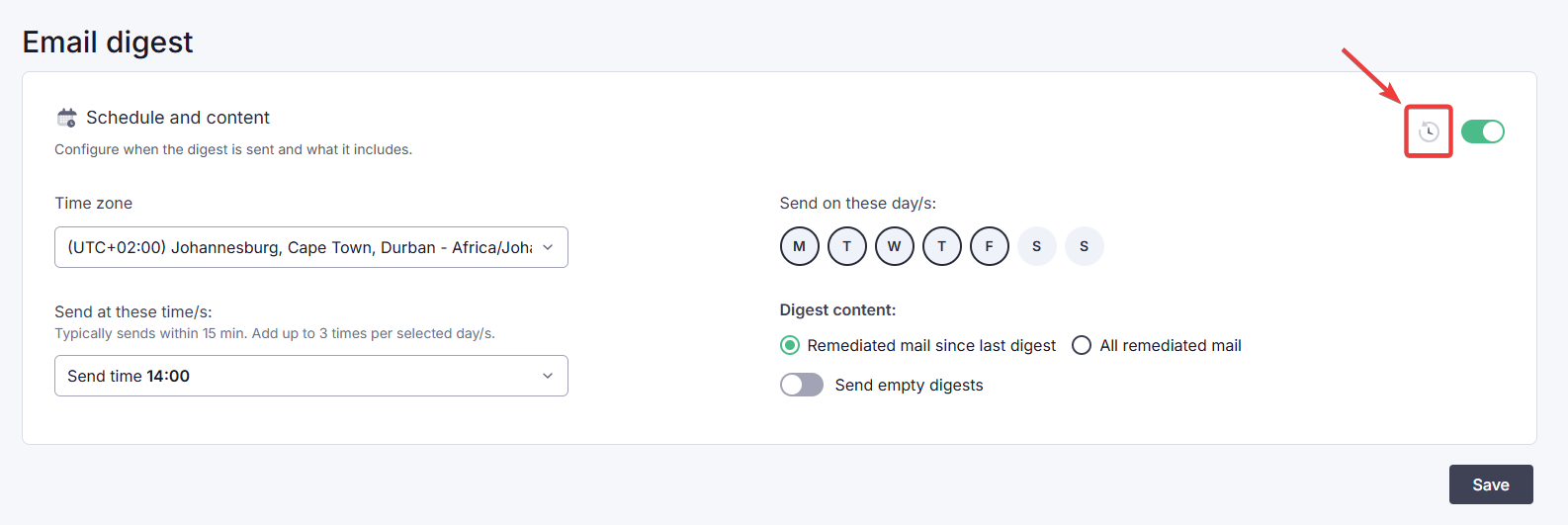
You can also choose to revert to the default schedule and contents set by your company admin by clicking the restore icon at the top right.
When you've made your changes, click Save.
Allow list
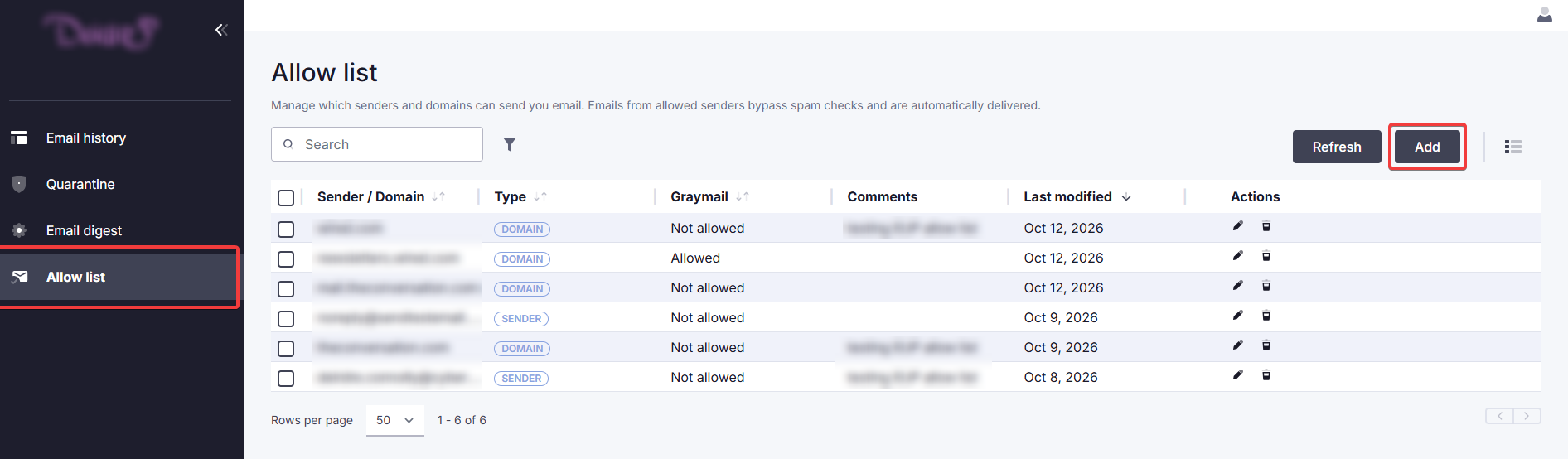
Under Allow list, you can specify senders and domains from which emails should always be allowed. Graymail can be included or excluded. Click Add to add a new entry.
Under Apply to, select whether you want to allow a sender or a domain. Enable Graymail to let through newsletters, promotions and similar types of emails (that would otherwise be blocked) from this domain.
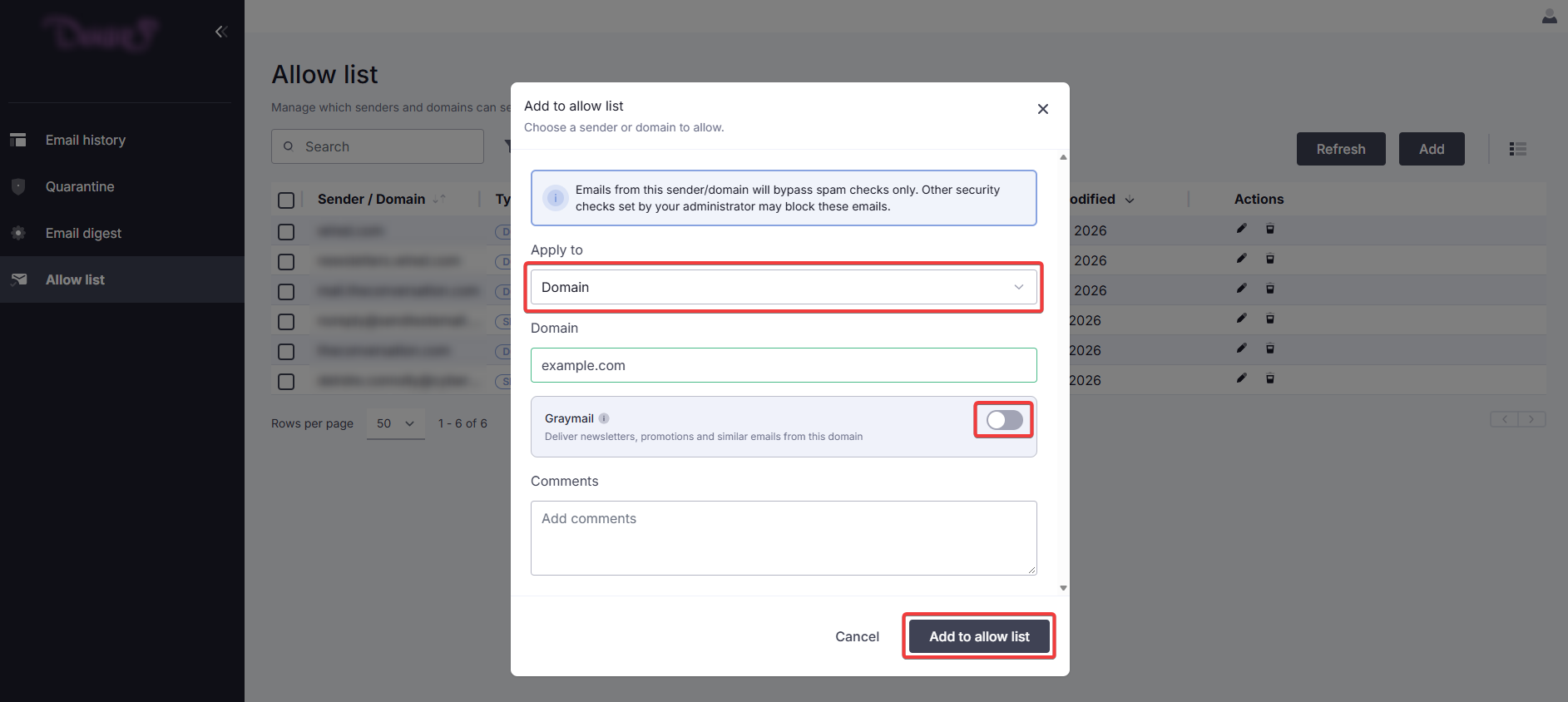
When you're ready, click Add to allow list.
Frequently asked questions
What if a user wants a message in the digest back?
They can release it with the button in the digest itself, or from the quarantine page in the end-user portal. An admin can also release it.
What are the user's portal login details?
There are no seperate login details to give to users. The portal uses Microsoft 365 SSO. The user signs in with their usual Microsoft account if prompted, or goes straight into the portal if they are already signed in. Do not create or reset a separate password for the portal as this does not exist.
Why are users are asked to accept permissions when they first sign in?
The organization-wide consent was not granted. Have an admin go to https://me.cybersentriq.com, sign in with Microsoft credentials, and accept the consent with the Consent on behalf of your organization checkbox ticked. Users will then be able to sign in without approval prompts.
Why are users not receiving the digest?
Check:
(1) that the digest has not been turned off,
(2) that end-user access is enabled,
(3) that the schedule's days and times are what the user expects, and
(4) that the user appears in the end-user list.
If nothing was remediated and empty digests are off (the default), no email is sent.
How does a user stop a trusted sender from being flagged?
The user can add the sender's email address or domain to their allow list in the end user portal. This exemption bypasses the Spam and Suspicious Intent verdicts (and optionally Graymail), while mail flagged as phishing, malware, or another threat verdict is not bypassed.
Why does the timestamp in the digest differ from the time the mail arrived?
Digest times are shown in the end user's Microsoft 365 time zone.