
Adding email addresses, domains, and/or IP addresses to the block list is a way of of controlling mail from senders you don't trust. Emails are analyzed after they are delivered to Microsoft 365; a matching message is then given the Block listed verdict, and is acted on in the mailbox moments after delivery, according to the action you set under Mail flow > Block list. A warning banner can be applied, or the message can be automatically remediated to the Junk Email or Deleted Items folder.
All entries added to the block list at the MSP level are applied to all customers. Block list entries that are unique to a specific customer must be added from the customer level.
PAGE CONTENTS
- How to add a block list entry
- How to edit a block list entry
- How to delete a block list entry
- Inheritance of block list entries
How to add a block list entry
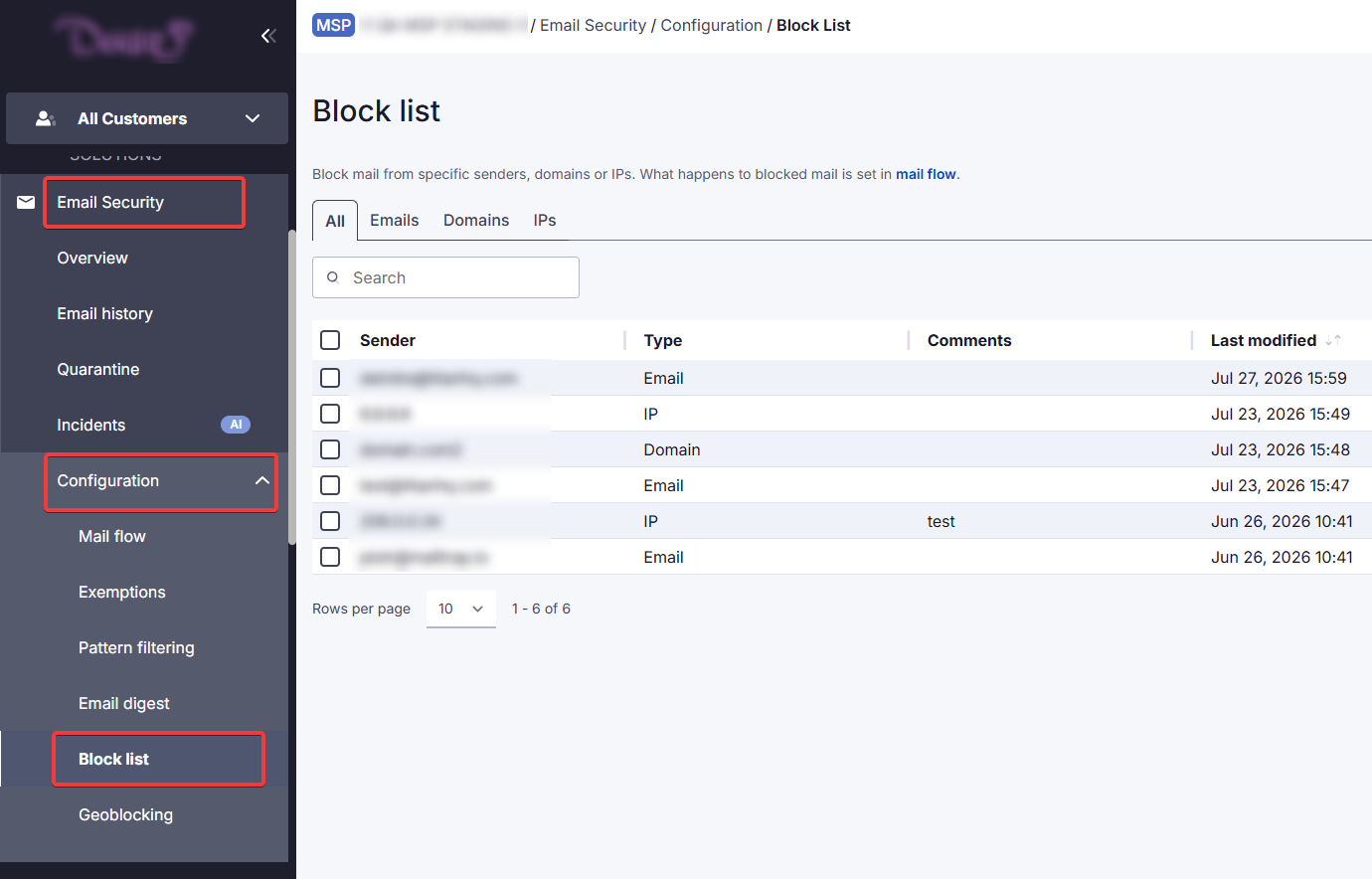
1. In the side navigation, go to Email Security > Configuration > Block list.
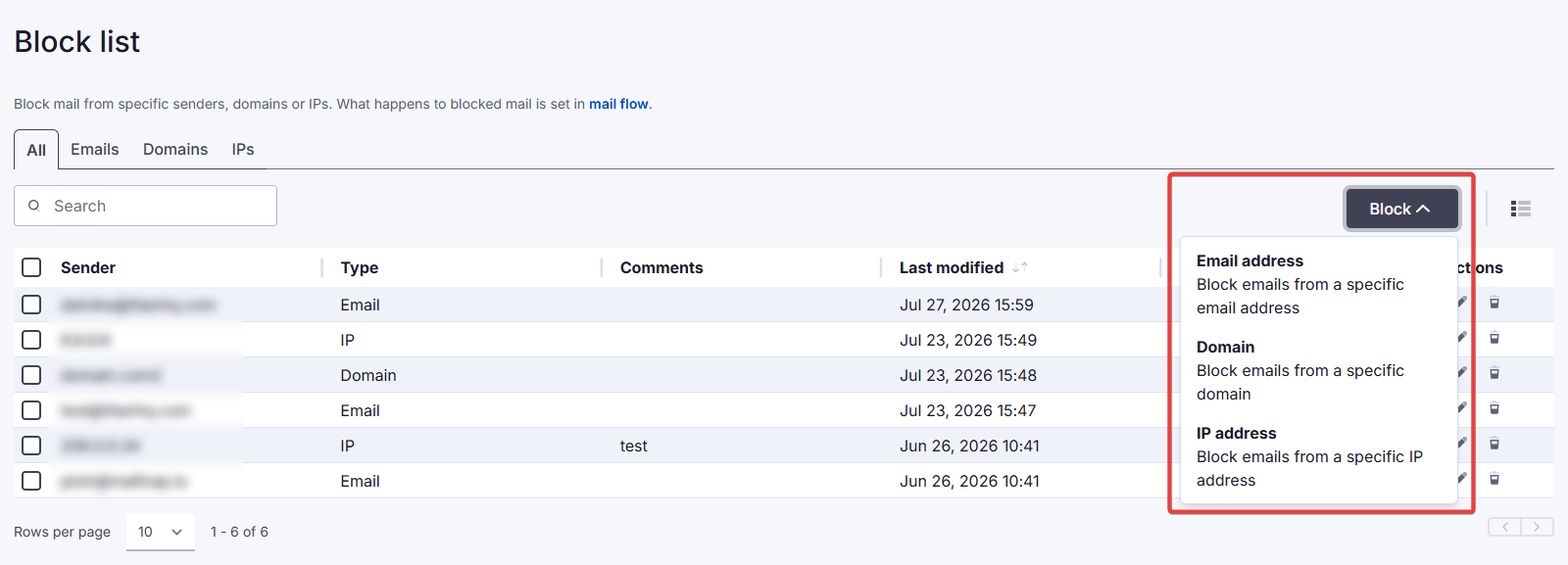
2. Click on Block at the top right and select the type of sender to block (Email address, Domain, or IP address).
3. Enter the details of the sender (in this example, a domain) and click Block.
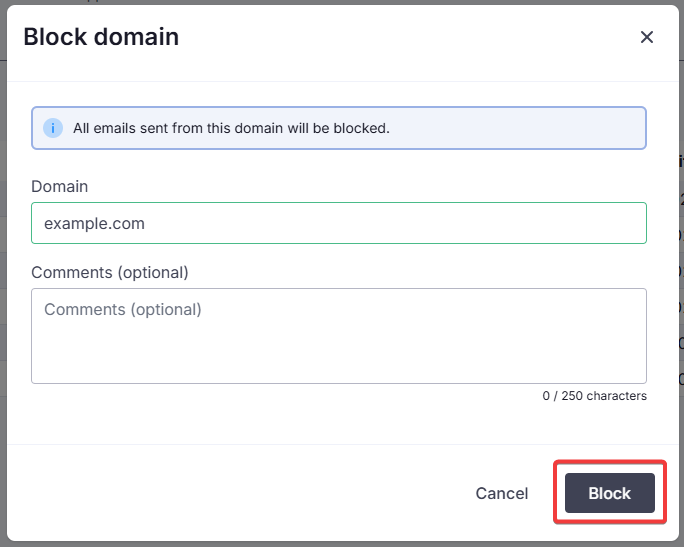
- For domain entries, note that subdomains cannot be added.
- Under Comments (optional), you can add notes, e.g. the reason for blocking this sender.
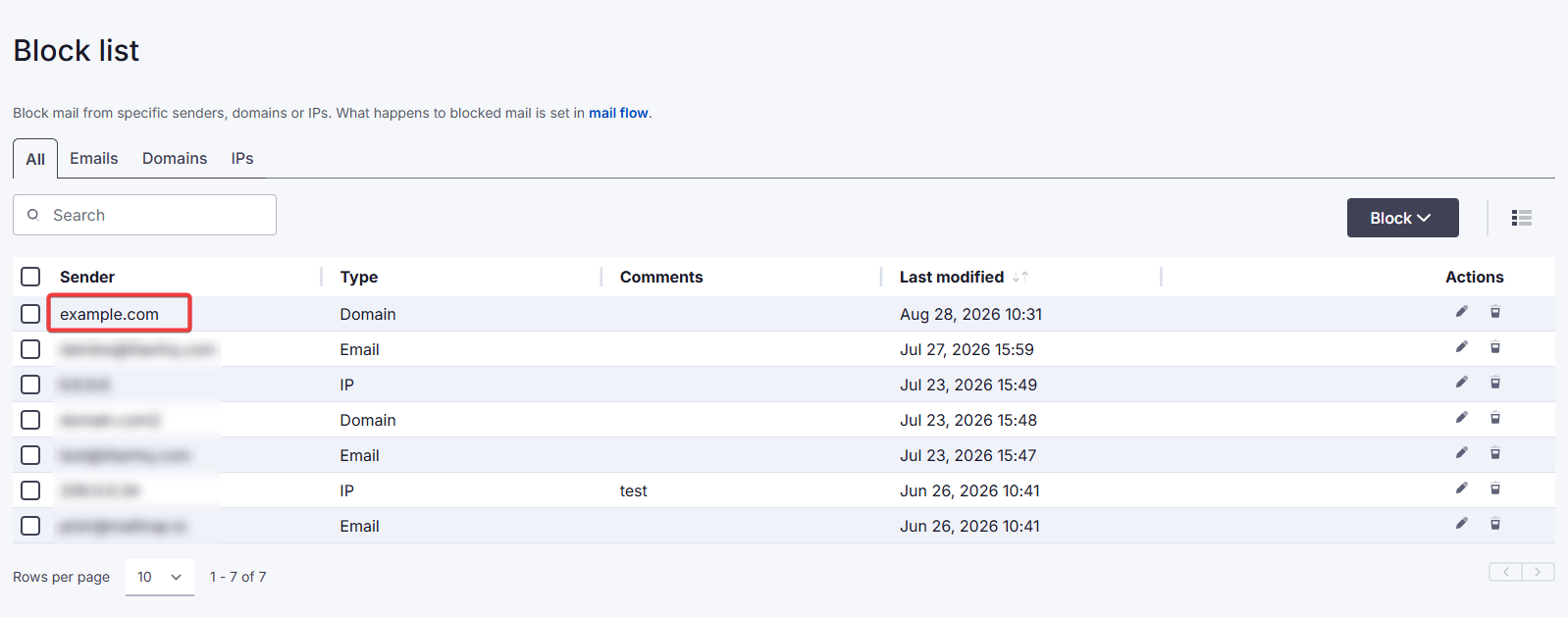
The new entry will now appear in your block list.
Under Email history, blocked emails are shown with the verdict Block listed.
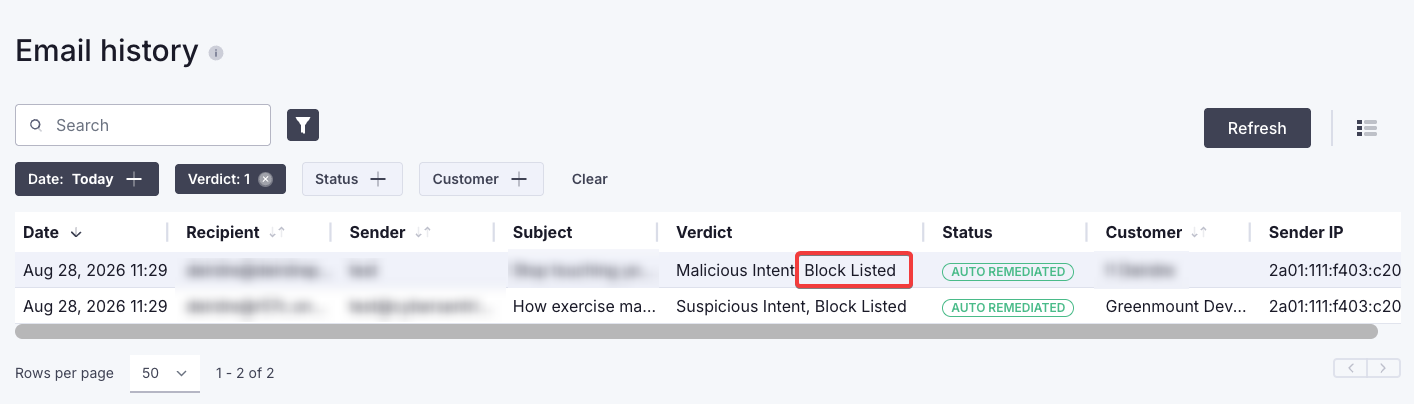
The status will be what you specify under Mail flow > Block list.
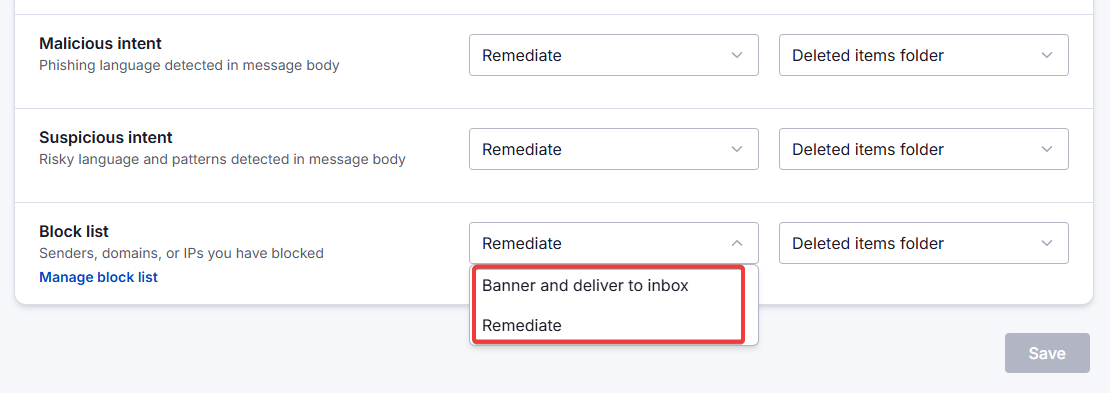
| Selected action (mail flow) | Status (email history) |
| Banner and deliver to inbox | Banner applied |
| Remediate | Auto remediated |
How to edit a block list entry
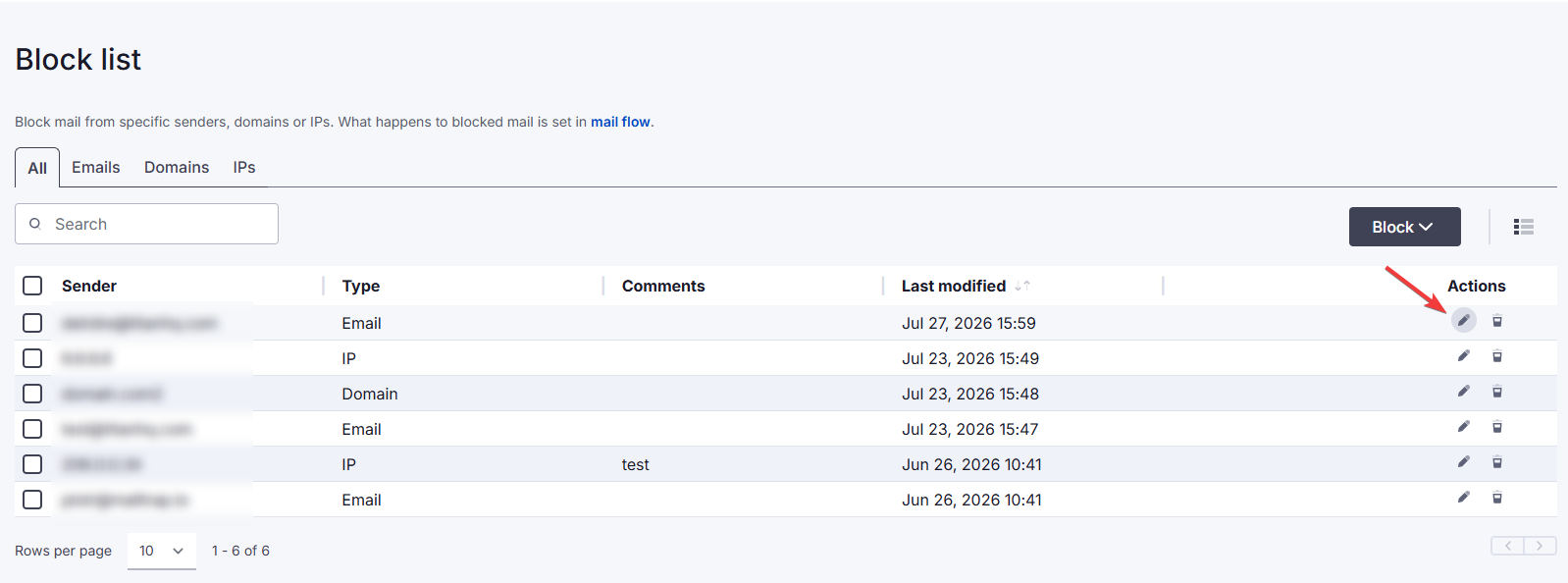
Click on the Edit icon in the Actions column.
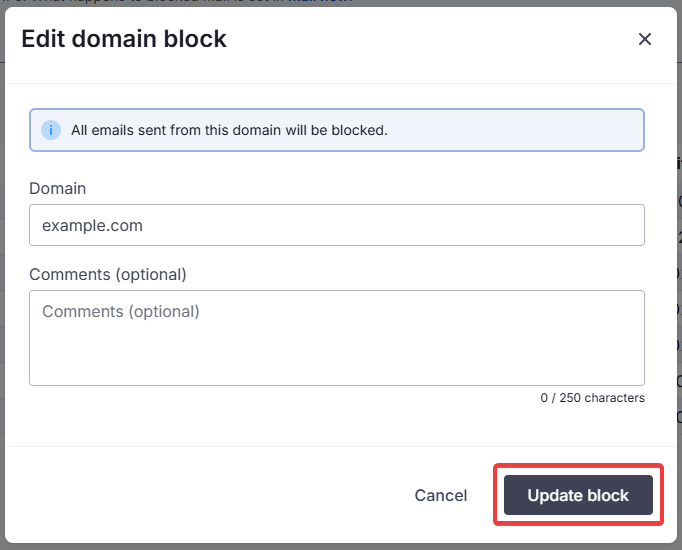
Make the changes you need to, then click Update block.
How to delete a block list entry
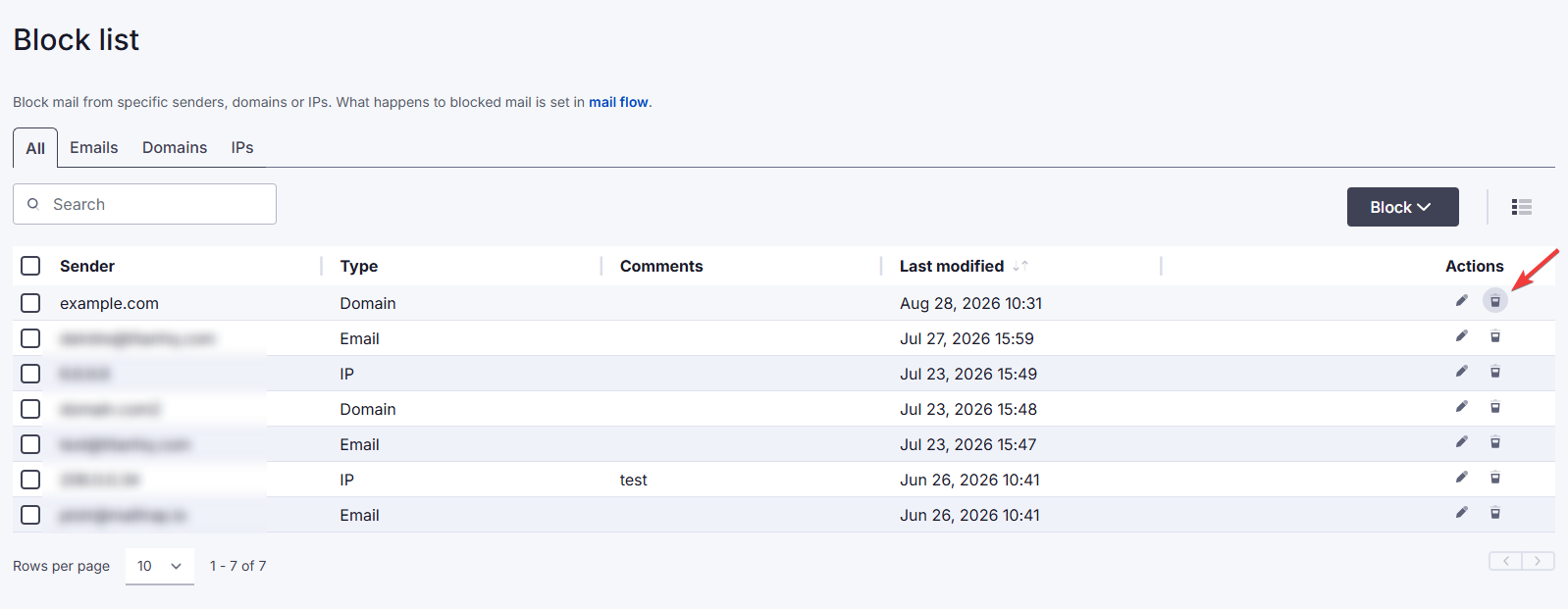
Click on the Delete icon in the Actions column.
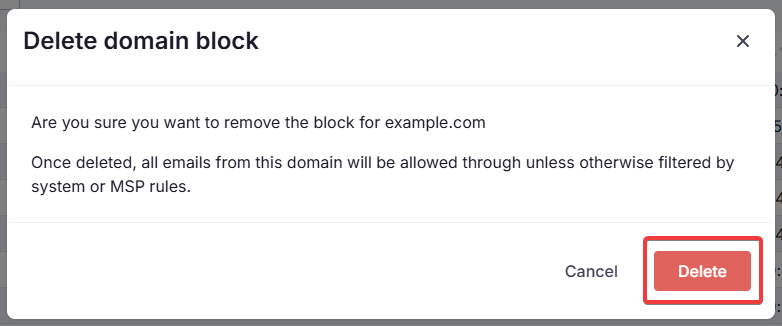
Confirm the action by clicking Delete.
Inheritance of block list entries
Block list entries can be created at MSP level or at customer level.
- Entries added at MSP level are inherited by all of that MSP's customers.
- Inherited entries appear in the customer's block list as read-only (customers cannot edit or delete them).
- If an inherited entry needs to be changed or removed, this must be done by the MSP at MSP level, and the change applies to all customers.
- Entries added at customer level apply only to that customer, and are managed (edited or deleted) by that customer.