
The new Mail flow page lets you specify a remediation action and folder for each verdict, allowing more granular customization. 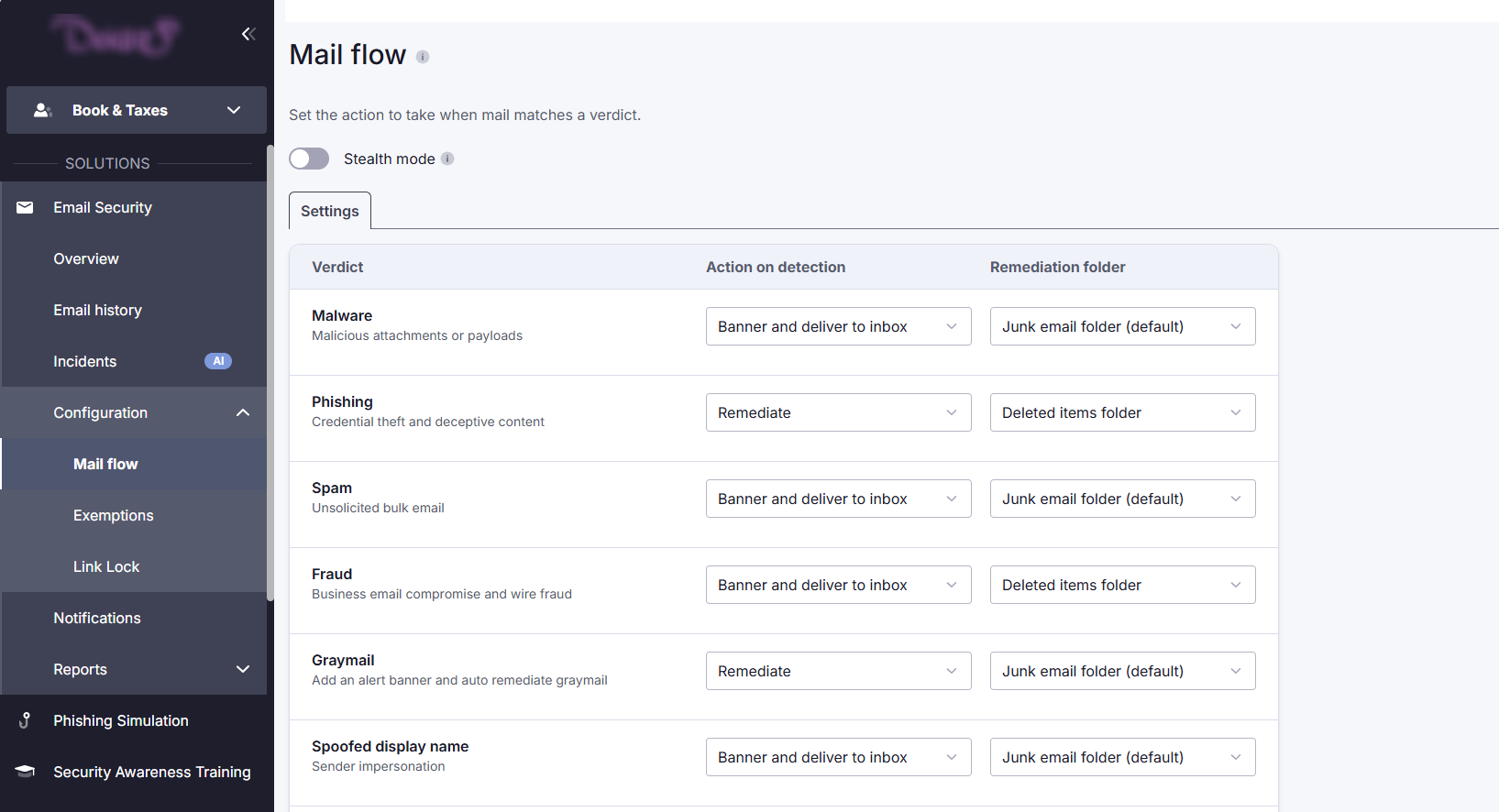
New settings
For each verdict, there are now two settings.
1. Under Action on detection, you will select what should happen to emails that receive a specific verdict.
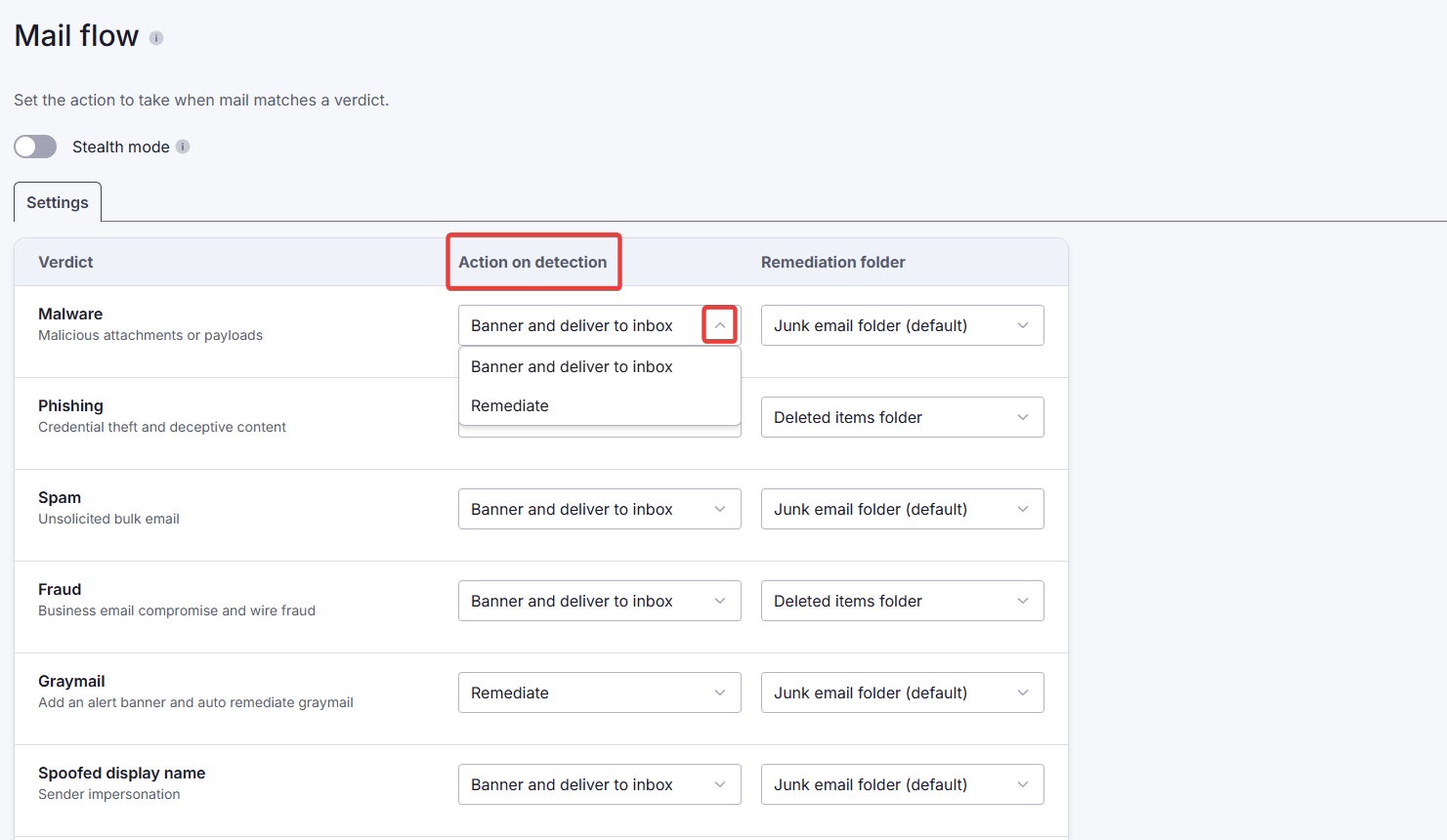
For most verdicts, there are three options. An email can be:
- delivered to the user's inbox,
- delivered to the user's inbox with a warning banner, or
- remediated (automatically sent) to a specified folder.
For some high-risk verdicts (e.g. phishing), the option to deliver the email to the user's inbox with no banner is not available.
2. Under Remediation folder, you will select where remediated emails should go.
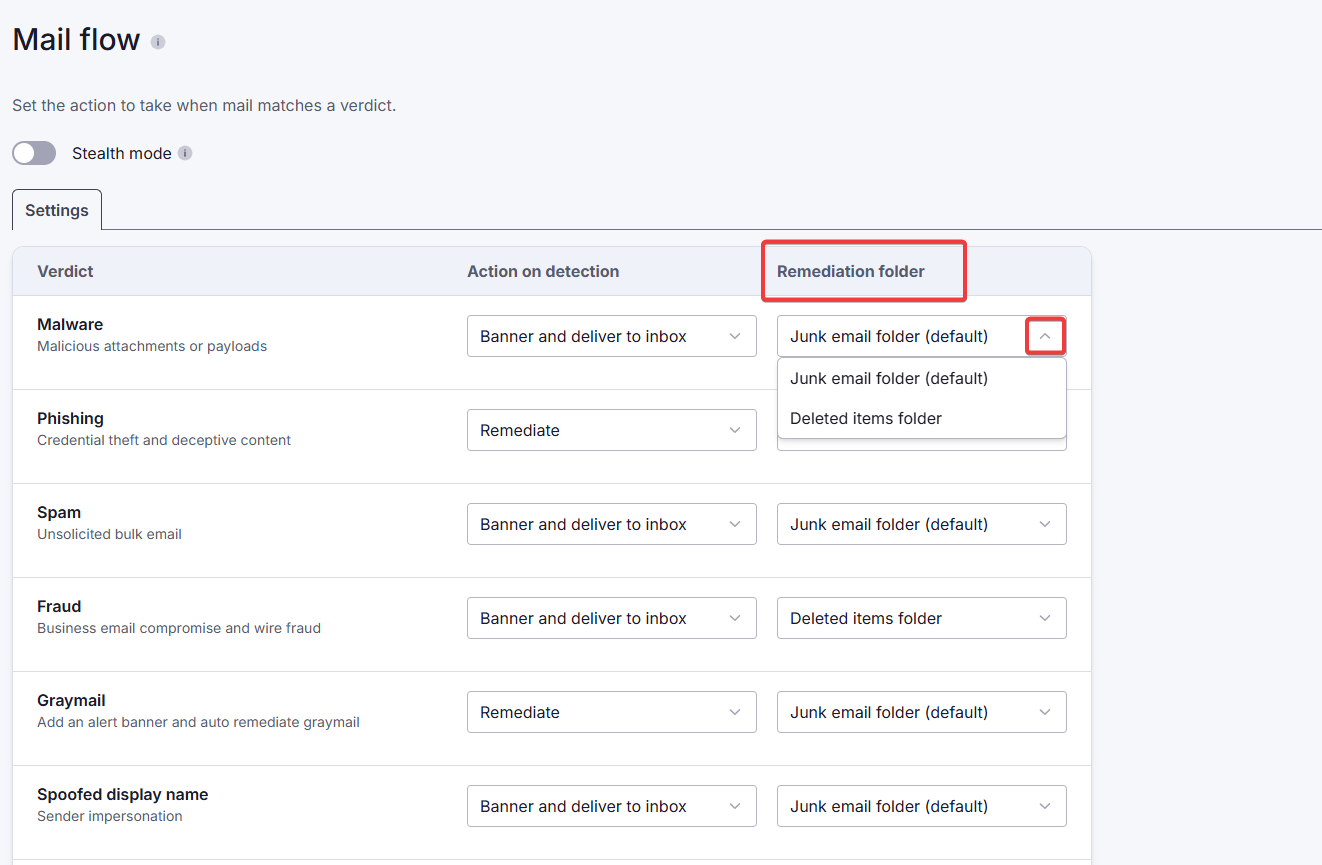
Even if the Remediate option is not selected as the action to take, the remediation folder remains visible in case remediation was selected by the admin (as opposed to the user).
You can now also select what happens to emails identified as risky by PhishShield (under the verdicts Malicious intent and Suspicious intent at the bottom of the page).
Migration of existing settings
When we switch to the new Mail flow page, your current settings will be transferred. You will be able to see your existing setup reflected in the selected drop-down options. Any changes you make to these settings after the introduction of the new page will only take effect on new incoming emails, i.e. changes are not retroactive.