
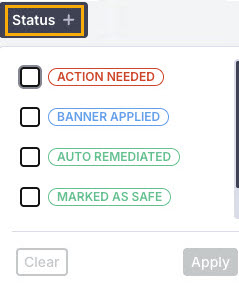
Go to Email Security > Email History to select an email in the list to view the email summary. Use the filter options to locate specific emails, based on Date, Verdict, and Status . For example, when you select Status, a dropdown checklist appears from which you can select one or more options to filter email history results.
Click on an email to view its details. A slideout panel appears with the Message section displayed by default. You can take action on some emails by selecting Actions. See Taking Action on an Email for details.
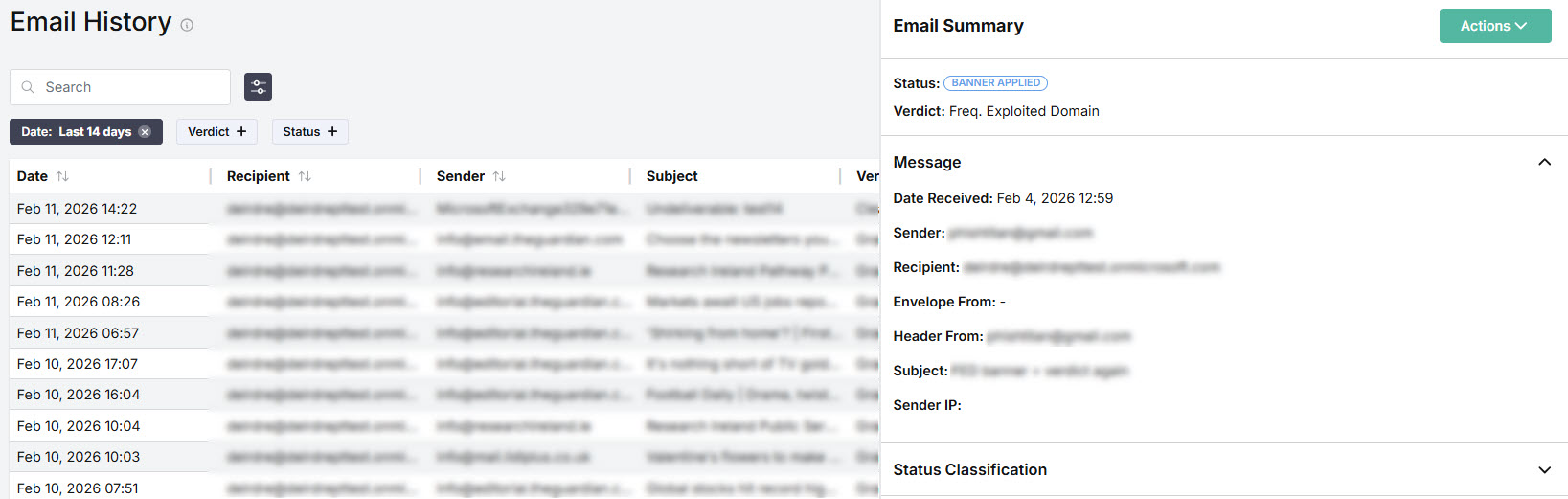
You can move between emails in the list, and as you select each one, the details are repopulated with the new data. The details available for an email are:
Email Summary
Status: Indicates the status of an email:
Action Needed: An email has been flagged by a user as phishing or safe using the TitanHQ for Outlook add-in. This incident needs Admin attention and review.
Banner Applied: The system has flagged this email as suspicious and applied a warning banner before delivering it to a user's Inbox.
Auto Remediated: Auto remediation has been enabled meaning that this email has automatically been moved to the Junk folder or the Deleted folder for all recipients.
Marked as Safe: Administrator has reviewed this email and determined it is safe. Once marked as safe, the email is then delivered to all recipients with a banner marking it as safe.
Remediated: Email has been assessed by the admin as malicious and sent to Junk Email folder or the Deleted Items folder.
Verdict: Indicates that the email has been processed and categorized as follows:
Clean: Email has been assessed as a legitimate and safe message.
Fraud: Email Security flagged this email as fraud. Email fraud intentionally deceives the recipient into sharing personal data, such as bank or credit card details.
Frequently Exploited Domains: A domain frequently used for malicious activities such as phishing, malware distribution, or spam. These domains are often used to deceive users.
Graymail: Refers to solicited marketing emails and comes from a legitimate source. Recipients once subscribed to them and now may no longer open or read them.
Malicious Intent: A message designed to deceive or harm the recipient, typically by delivering malware, stealing credentials or sensitive data, or manipulating the user through phishing, spoofing, or other social engineering techniques.
Malicious Links: A malicious URL is a link embedded in an email that was created with the purpose of promoting scams, attacks, and frauds. When selected, malicious URLs can download ransomware, or lead to phishing or spearphishing emails.
Malware: Malware, short for "malicious software", can be a file or a link in an email that is intentionally harmful to a computer, network or server. If a user interacts with the link or file, malware can infect networks and devices and steal, encrypt and delete sensitive data.
Phishing: Phishing emails attempt to trick people into revealing personal or confidential information which can then be used illicitly; for example, to steal a recipient's money or identity.
Spam: Spam refers to unsolicited emails that are sent to a large number of recipients, usually as advertising.
Spoofed Display Name: Email Security detected a spoofed display name. Email spoofing is the creation of an email with a forged sender address to intentionally mislead a recipient about its origin.
Suspicious Intent: A message that shows warning signs of potential malicious activity—such as unusual sender details, unexpected requests, or questionable links or attachments—but lacks definitive proof of being malicious.
Suspicious Text: Email Security detected suspicious text in the body of this email.
User Reported: A user reported this email as suspicious with the TitanHQ for Outlook add-in.
User Reported Clean: A user reported this email as clean with the TitanHQ for Outlook add-in.
User Reported Phishing: A user reported this email as phishing with the TitanHQ for Outlook add-in.
User Reported Spam: A user reported this email as spam with the TitanHQ for Outlook add-in.
Message
Date Received: Date and time the email was received.
Sender: Email address of the sender.
Recipient: Email address of the recipient.
Envelope From: The return address in the email header that is used to return bounced mail.
Header From: The sender's address which is visible in the email header.
Subject: Subject header of the email.
Sender IP: IP Address of the sending server.
Status Classification
Internet message ID: A globally unique identifier for an email, embedded in the message header, that distinguishes it from all other messages.
Virus Infection: Indicates whether a virus was detected.